
An interesting case within Identity & Access Management is when companies own different brands (and thus market identities). With its multi-branding functionality, OneWelcome is able to support these companies with one single identity infrastructure over multiple brands, while maintaining each brand’s own identity (including look&feel).
Multi-branding & Omni-channel
Depending on the company’s online strategy:
Consumers should be engaged through multiple “Brands” to tailor the experience in terms of look, content and processes. For the company, and for the consumer as well, they will be seen as one identity regardless the channel and brand of choice.
The same person should be managed independently thought multiple accounts, across siloed domains (aka “Segments”) and treated as unrelated identities by all means.
Independent companies or divisions can be split not just at user and brand level, but also at administrative level through different “Tenants”.
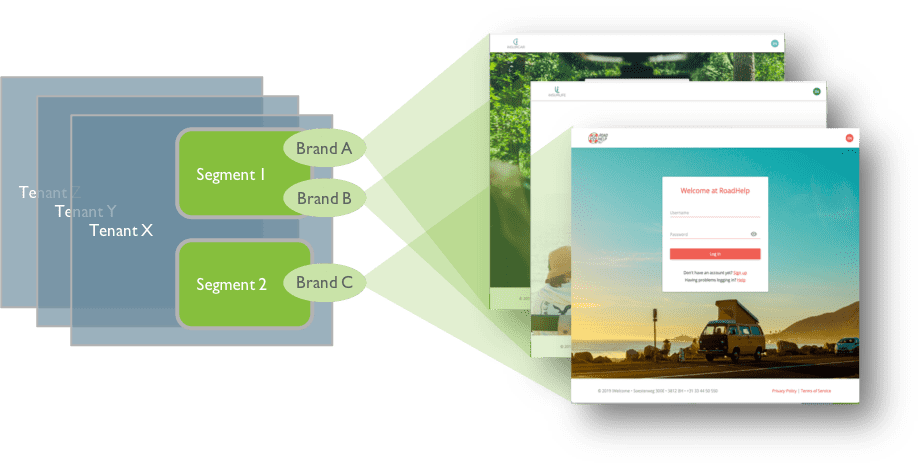
Tenant & Segments & Brands
Tenant | Segment | Brand | |
|---|---|---|---|
Definition | OneWelcome IDaaS instance Typically per customer: production, test, acceptance | Identity partition / Logical identity repository At least one per tenant | Service Skin for Logo, Pallet, translations, background, customization At least one per segment |
Created by | OneWelcome OPS team | Additional ones by Tenant Admin | By default one brand per segment Additional brands can be created by Tenant Admin |
Authentication endpoint | NA | Per individual segment No native SSO across segments belonging to the same tenant | Segment-defined screens can be used with different “skins” Native SSO among Brands belonging to the same segment |
Policies | Sensible default | Password Policies Activation and registration flows | Default from segment applies Brand specific activation/ registration flows |
Schema Attributes /Consent | SCIM-core + OneWelcome extension | Different per segment at API and UI level Doc and Attribute PP management | Can be differentiated per brand at UI level Segment based at API level Doc and Attribute PP management (roadmap) |
Scenario
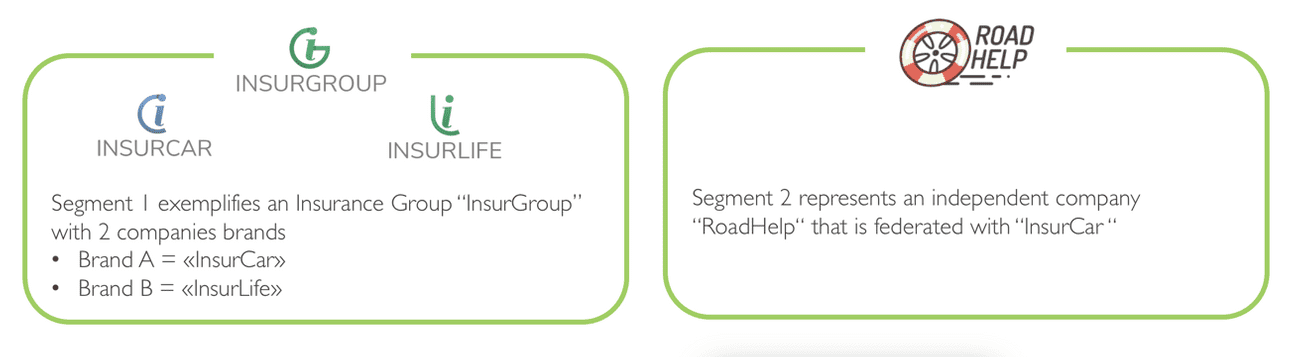
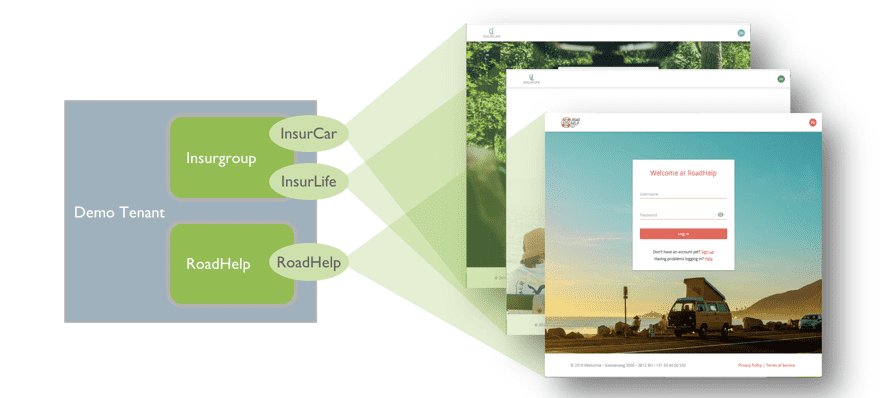
Segment/Brand Configuration
INSURCAR | INSURLIFE | ROADHELP | |
|---|---|---|---|
Registration Process | StepOut LookUp Registration 1.enter email + car insurance policy number (demo step-out lookup); 2,receive email, click link; 3.pwd page, enter pwds; 4.complete profile: name, address, gender, car brand (consent attr), car model (consent attr), consent docs | 2FA Registration 1.enter email + phone; 2.receive email, click link; 3.otp page, enter code received by sms; 4.pwd page, enter pwds; 5.complete profile: name, address, gender, insurance policy number (mandatory, NOT consent), consent docs | Consent UpFront Registration 1.enter email + consent docs; 2.receive email, click link; 3.pwd page, enter pwds |
Extra Attributes | Car Model (optional; consent) Car Brand (optional; consent) | Life Policy (mandatory;non-consent) | NA |
Social Registration | NA | NA | |
Social Login | Facebook, Google, Microsoft | NA | NA |
Login | Username + password | 2FA | Username + password |
Password reset | Ordinary | 2FA | Ordinary |