
The scheduling capability within RITM allows us to optimise performance by allowing other jobs to be scheduled instead of running instantly and help us and our clients keep track of jobs and tasks.
Active jobs
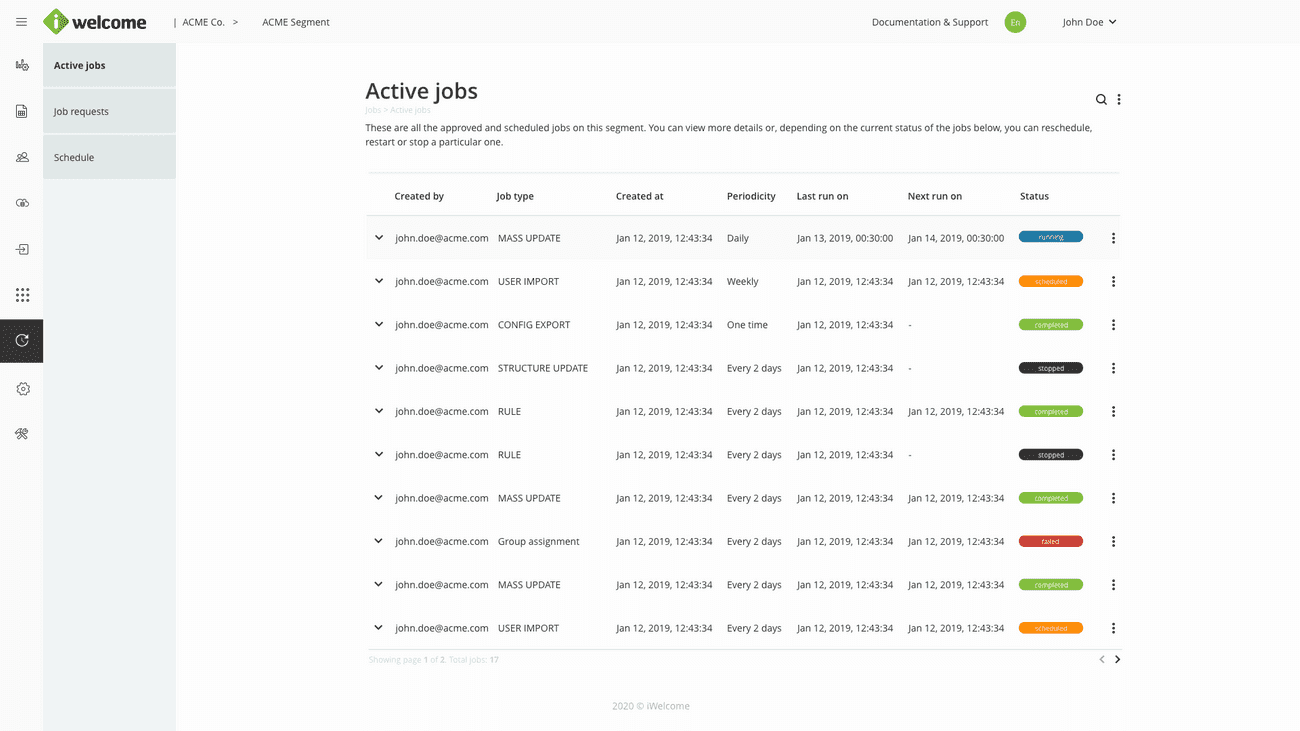
The Active jobs page provides an overview on all the jobs scheduled within the organisation and allows admins to reschedule, resume, deactivate or stop a particular job (Please see the Statuses and actions section below).
Accessing active jobs
A user is only able to access the Active jobs listing within the platform if that user has at least one Admin role that grants him that permission. Users that have this permission are allowed to view details about each job, perform actions or reschedule an active job.
Job details
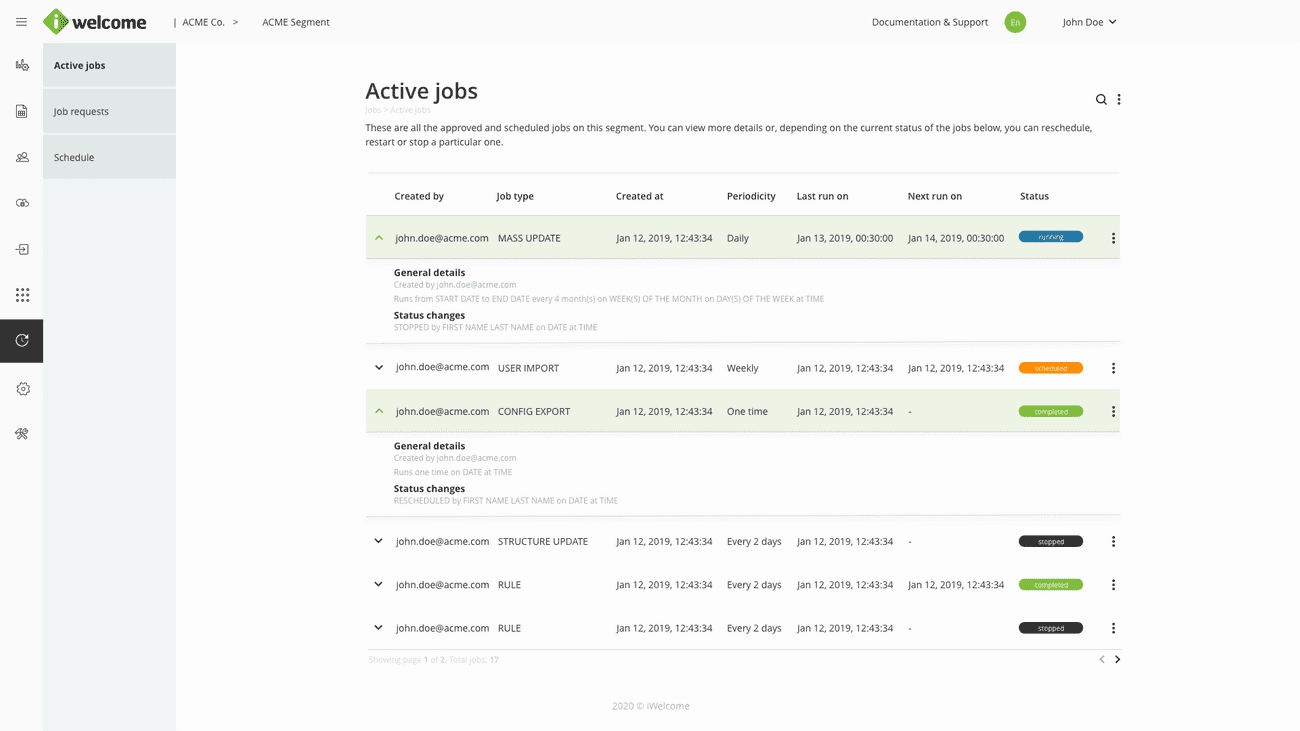
The details expansion panel provides information about each job, being composed of general details (common to all jobs) + specific details (specific to the job type).
Job actions
Depending on the curtent status of a job listed on the Active jobs page, you may perform the following actions:
scheduled - Reschedule
running - Stop
stopped - Reschedule, Restart
failed - Reschedule, Restart
completed - Reschedule
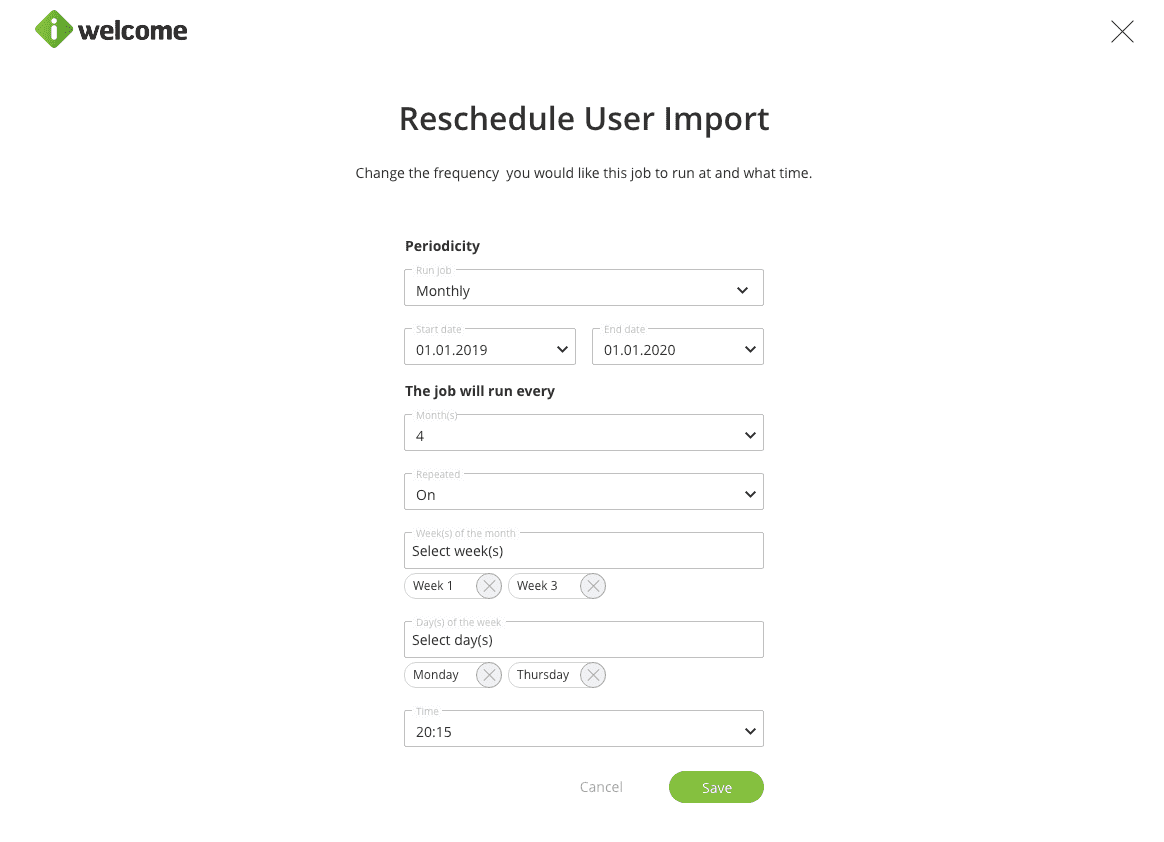
Rescheduling a job
Will overwrite the default schedule for the job type that the item is part of.
Jobs can be scheduled to run Once, Hourly, Daily, Weekly or Monthly, as following:
Once
Date (01.01. … .-31.12. … .)
Time (00:00-23:59)
Hourly
Start date (01.01. … .-31.12. … .)
End date (01.01. … .-31.12. … .)
Minute (00-59)
Daily
Start date (01.01. … .-31.12. … .)
End date (01.01. … .-31.12. … .)
Day(1-31) - the job will run every… days
Time (00:00-23:59)
Weekly
Start date (01.01. … .-31.12. … .)
End date (01.01. … .-31.12. … .)
Week(s) (1-52) - the job will run every… weeks
Day(s) of the week (Monday, Tuesday, Wednesday, Thursday, Friday, Saturday, Sunday)
Time (00:00-23:59)
Monthly
Start date (01.01. … .-31.12. … .)
End date (01.01. … .-31.12. … .)
Month(s) (1-12) - the job will run every… months
Repeated
On
Week(s) of the month (Week 1- Week 4)
Day(s) of the week (Monday, Tuesday, Wednesday, Thursday, Friday, Saturday, Sunday)
Time (00:00-23:59)
Each
Day of the month (1-28)
Time (00:00-23:59)
Restarting a job
Starts the action comprised within the job from the beginning, without taking into account progress.
Stopping a job
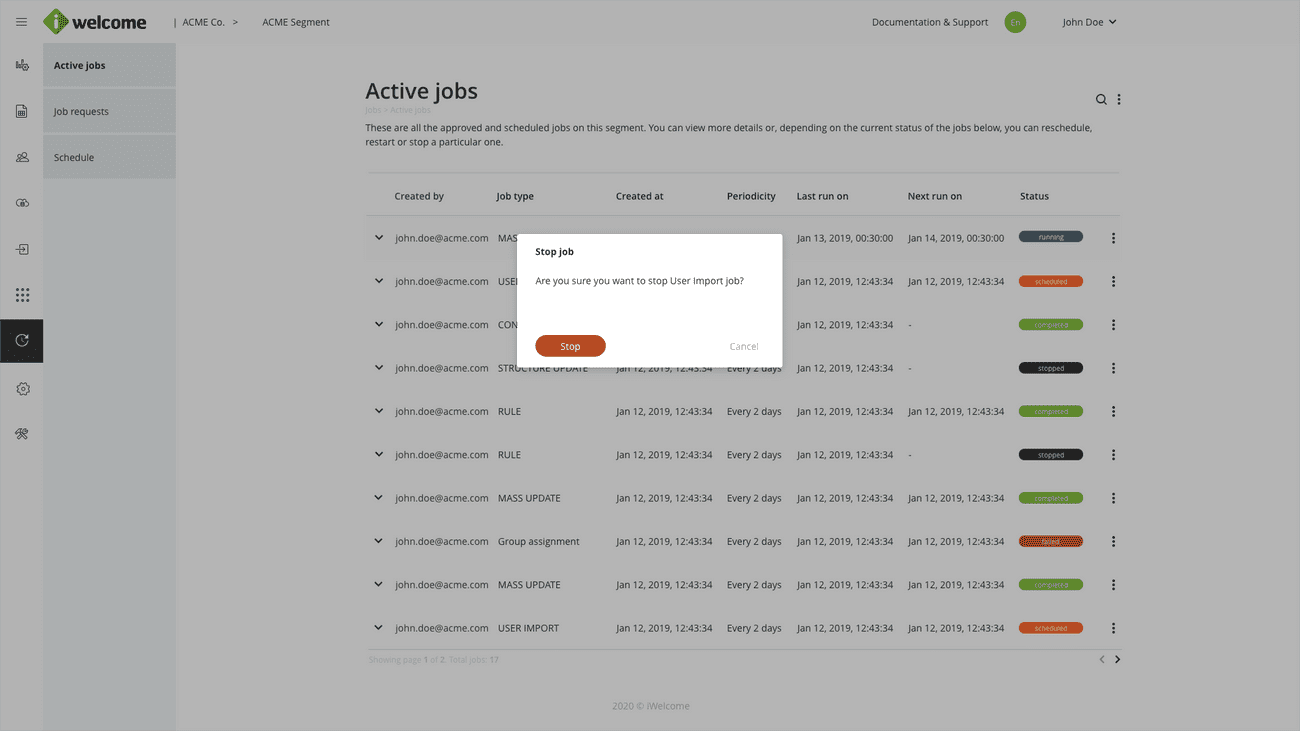
Discards all the actions that were being performed within the job that was running.
Job requests
Depending on the default settings established at a job type level, a particular job could require an additional approval step before that job is performed. The job requests menu is where we gather all jobs that were created by platform admins and that need to be approved.

Accessing job requests
A user is only able to access the Job requests menu item within the platform and to manage requests if that user has at least one Admin role that grants him that permission. Users that have this permission are allowed to approve or deny job requests.
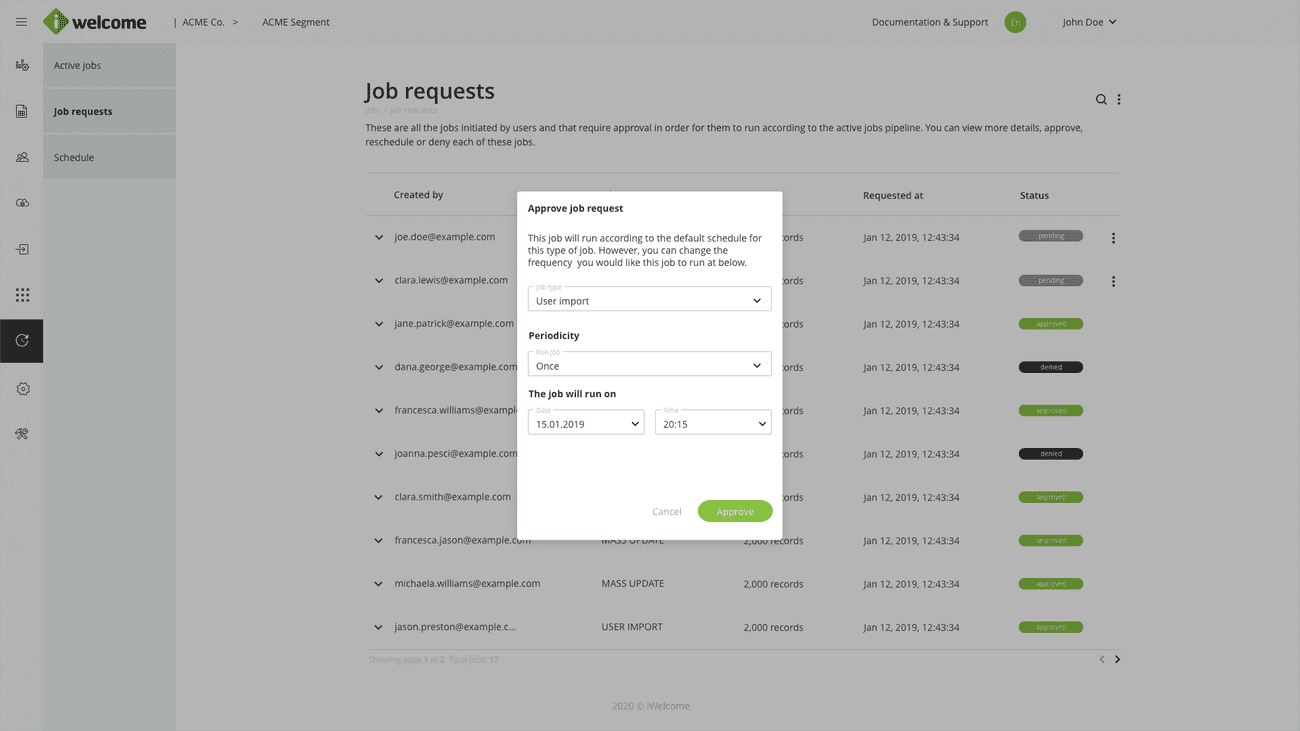
Approving a job request
If you choose to approve a job request, you have the option to change when that particular job will run, by overwriting the default job type schedule for that item.
Denying a job request
Denying a job request will permanently update its status to "denied" and will prevent any further action from being performed on that request.
Schedule
The last menu item of the Jobs section handles the default information and schedule for out of the box job types, such as user imports, mass updates or rules.
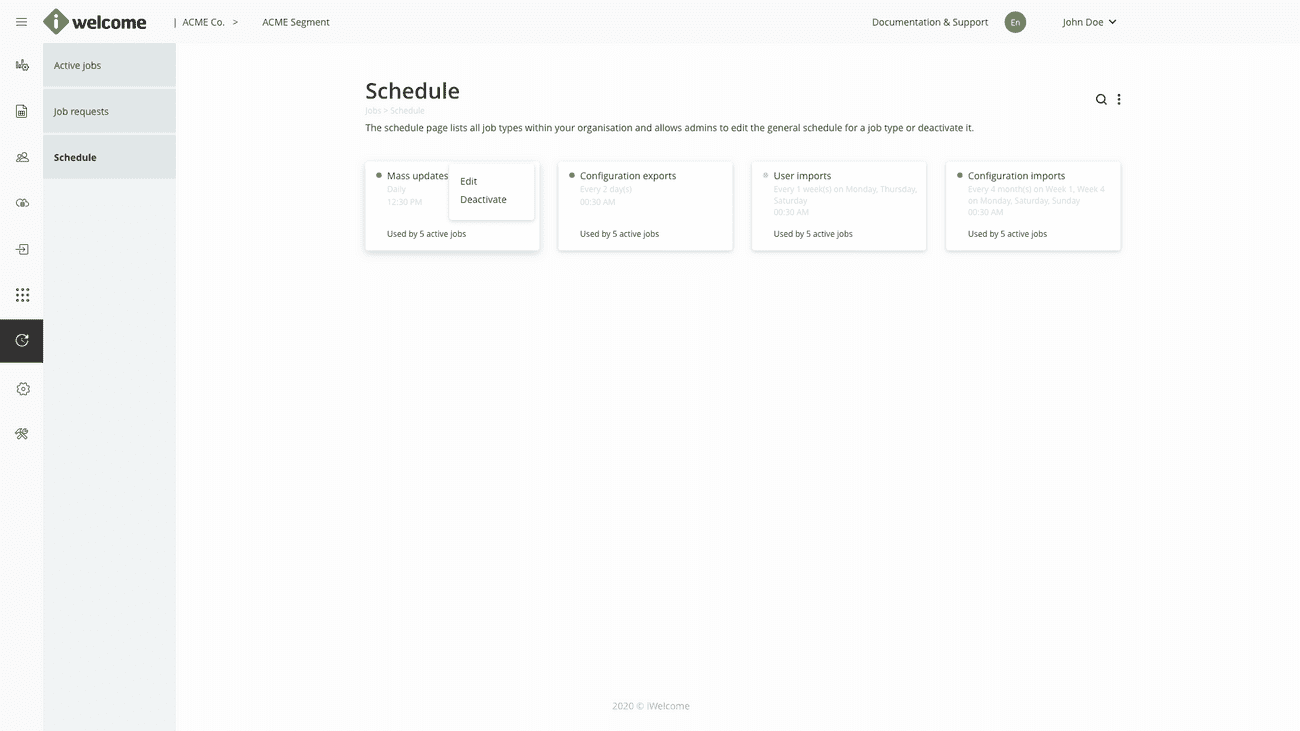
Accessing the general job types schedule
A user is only able to access the general Schedule configuration menu item within the platform if that user has at least one Admin role that grants him that permission. Users that have this permission are allowed to manage the general information and schedule for default job types.
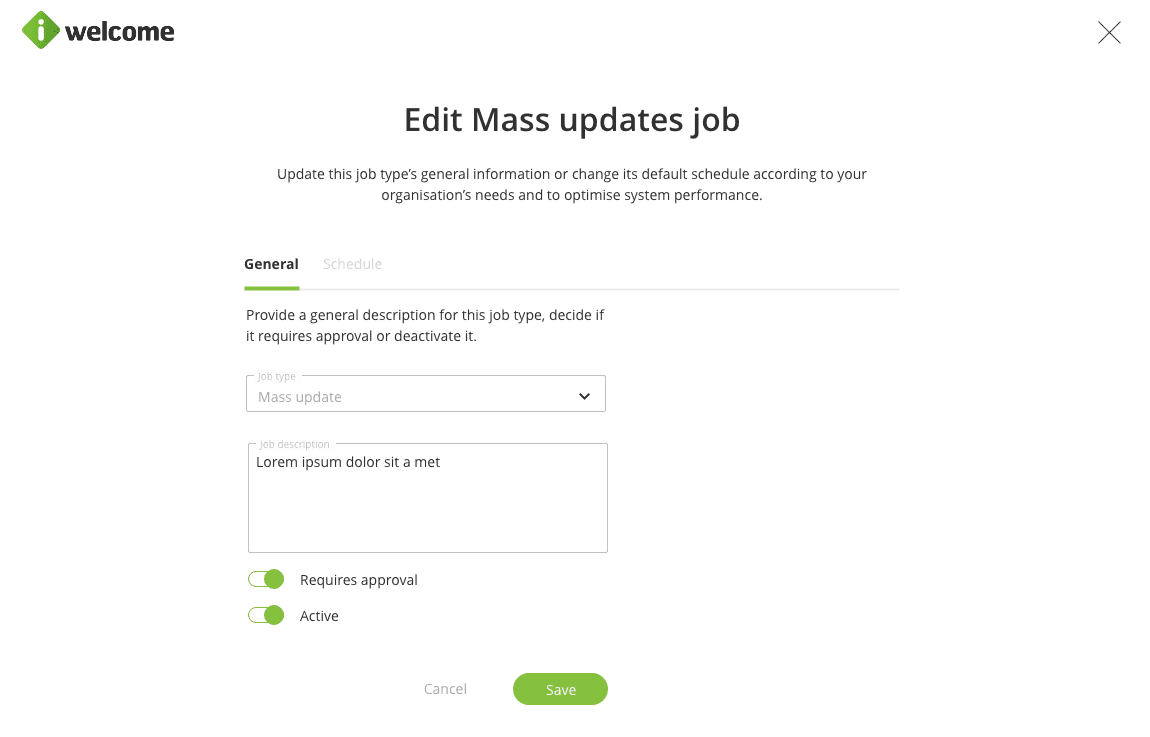
Editing a job type
The system allows the editing of the following information related to a job type:
Job description - provide additional information and context about the job type;
Requires approval - whether new jobs created by platform users and that belong to that particular job type need to be approved before they are included in the "Active jobs" page and further scheduled and applied;
Active - whether that type of job is included in the Jobs section;
Schedule - the default schedule according to which new platform jobs will run, by type. Can be overwritten for each individual job on the "Active jobs" and, if the case, "Job requests" page.
Deactivating a job type
When a job type is deactivated, all user-generated jobs for that particular type will no longer be included in the jobs section of the platform.
